Helping design and engineering professionals discover, evaluate and specify technologies and processes that shorten the design cycle and enable success.


Alert!
Digital Engineering ceased publication on July 1, 2026. This website remains available as an archive of engineering content.
For inquiries or information, please email [email protected].

May 2026 Special Focus: Artificial Intelligence in Design and Simulation
In this Special Focus Issue, learn about the latest developments in the integration of artificial intelligence into engineering workflows.

April 2026 Special Focus Issue: Generative Design
In this Special Focus Issue, Digital Engineering takes a look at how generative design solutions can be used across different types of design problems and with a variety of manufacturing approaches to accelerate design space exploration, and…
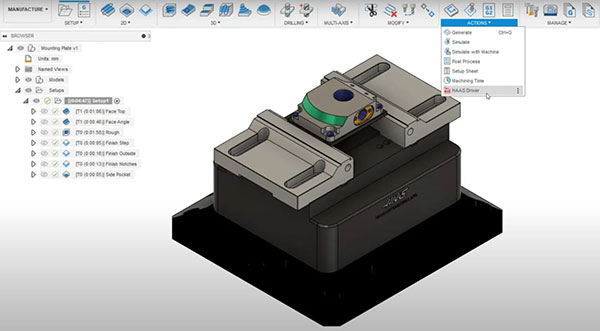
The Haas Driver for Fusion 360 from Autodesk is a new add-in that enables instant-on productivity for users with Haas Milling Machines fitted with the Haas NGC controller. It will search for machines connected to your shop network and add them to your Autodesk Fusion 360 machine library. This allows NC programs to be sent directly to the controller.
To access the Haas Driver, start by downloading it from the Fusion 360 App Store here. Once it’s installed, it will appear as an option inside Fusion 360 under the Actions panel in the Manufacture workspace. Once you open the driver window, the first step is to add your machines. Do this using the plus icon, and you can then select whether to search for a machine on the network your PC is connected to or search by IP address for a specific machine.
Selecting “Search my network” is the easiest method to find all machines. Once found, you can select single or multiple machines and then add these to your library. You can then view the information for the machine in the Haas Driver window, including any rotary attachments. This information about the machine’s setup is used to automatically configure the post-processor.
The next step: assign your machine to your manufacturing setup. Select a machine from the Setup tab to open the machine library. There will now be a new Network library folder that will contain any machines added using the Haas Driver. Select the appropriate one and OK to assign.
Once your toolpaths are ready, the next step is to use the Haas Driver to send the code. Switch to the Send Operations tab so that any setups with a network library Haas machine assigned will be selectable. You can select the entire setup or individual toolpaths, and the machine that they are assigned will display. When ready select Send.
At this point, the Haas Driver will check for any changes on the machine. If there are none, it will continue to the next step, which is to enter a program name and optional comment. You can then select where to send the NC program—directly to the machine or to a local output destination on your PC. Send to Machine will be the quickest method to get the file onto the controller. Once sent, you will see a preview of the code. You can now find the file under the “Project” folder on your controller, ready to run and configured for your machine.
If you would like to make any adjustments to how the code is output, you can edit the machine using the pencil icon in the Network Machines tab. You can change some settings, such as the display name. In the NC preferences tab, you can adjust your post processor preferences to output the NC code for your needs.
Download a free trial of Fusion 360 here.
Sources: Press materials received from the company and additional information gleaned from the company’s website.


Autodesk is a world leader in 3D design, engineering, and entertainment software. They produce software for the architecture, engineering, construction, manufacturing, media, and entertainment industries.

DE's editors contribute news and new product announcements to Digital Engineering. Press releases may be sent to them via [email protected].
Follow DE
Join over 90,000 engineering professionals who get fresh engineering news as soon as it is published.






About Us · Contact Us · Editorial Team · Advertising · Privacy Policy · Subscriber Services · © 2026 Digital Engineering 24/7 · Peerless Media